A clear subject
Can someone recognize the product, character or scene in the opening frame? Keep versions that preserve the details your idea depends on.


Choose a ready-made workflow in Nova Creative, such as Jelly Squish, Tiny World or Pet at Work. Add your reference and adapt the prompt for your post or ad.
Create images and videos in Nova Creative.
Start with the ready-made video flow in Nova Creative.
Upload a clear photo and describe the movement you want.
Check the product details before using it in a post or ad.
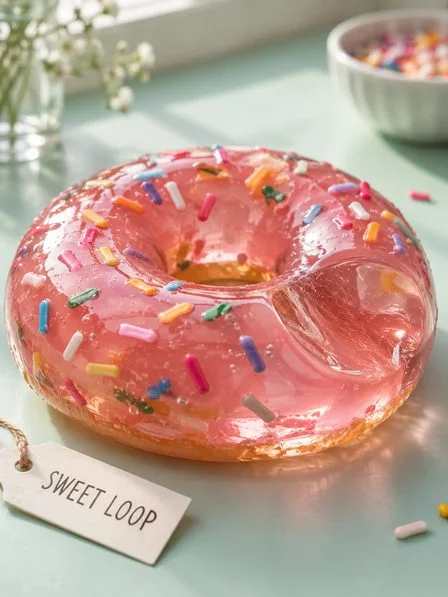
Start with this kind of brief, then adapt it to your business.
AI-generated effect references from the creative gallery. Open a clip to watch it in full. These clips are not verified outputs of the Jelly Squish or Tiny World workflows.
Example instruction for Jelly Squish“Use this product photo for a Jelly Squish clip. Keep the product recognisable as it wobbles and returns to its original shape.”
Open Nova Creative, choose Image or Video, then browse Trending. Pick an effect that fits the subject and the content you want to make.
Load the flow onto the canvas. Add the photo or clip it asks for, then edit the visible prompts to match your subject and idea.
Check the model, settings and cost before generating. Inspect the result and adjust the prompt or reference if the first version misses the brief.
A visual trend gives you a format to try. Your published post or ad shows whether that version connects with your audience.
Can someone recognize the product, character or scene in the opening frame? Keep versions that preserve the details your idea depends on.
After publishing, use the platform’s own reporting to review views, watch time, shares or clicks. Compare with similar content on the same account.
Keep the flow you used. Change the opening, subject or prompt for the next version, and record what changed when comparing results.
Open Nova Creative and choose Image or Video on the empty canvas. In the preset gallery, select Trending, choose a flow and add the references it requests.
The page includes illustrative preset artwork and effect references from the creative gallery. The clips are not verified outputs of the workflows described here. Your reference, prompt, model and settings will affect your result.
No. A ready-made flow helps you create a version of an effect; it does not guarantee reach, engagement or sales. Review the content and assess the response after publishing.
Image and video workflows in Nova Creative.