

BigCommerce Meta Ads Setup: Catalog and Pixel Configuration
Verify BigCommerce catalog IDs and paid-order events with a webhook ledger, consent checks and a synthetic release matrix.
A BigCommerce setup is ready for advertising when one paid order can be traced through the storefront, payment record, event ledger and matching catalog item. Start with that acceptance test before choosing campaign budgets. Catalog synchronization and purchase measurement are separate contracts; neither guarantees profitable ads.
Establish ownership before installation
- Record the store, storefront channel, Meta business, ad account, catalog and dataset owners. Check that the people authorizing the connection can manage the required assets. Use a test store and least-privilege API access for a custom receiver.
- Inventory native-channel, theme, Script Manager and tag-manager event senders. Assign one owner to each event and channel; remove accidental duplicate browser installations without removing an intentional browser/server pair.
- Inspect the installed connector and its documented release. Verify supported events, consent behavior and catalog update timing on this storefront instead of assuming a universal native configuration. Keep credentials and customer identifiers out of screenshots.
A webhook is a pointer, not a paid purchase
BigCommerce’s webhook overview documents store/order/statusUpdated and a lightweight payload containing the order ID. The receiver must retrieve full order details. Its retry behavior means delivery can repeat; an order being created or changing status does not by itself establish captured payment. Product views belong to a verified browser implementation, not an invented product/viewed webhook subscription.
Illustrative handler design, not a deployed connector: for a fictional store S and order 173331, persist the validated callback, then acknowledge receipt. A worker reads the order and payment evidence using authorized APIs. If the gateway is pending or failed, record that state and do not send Purchase. When the chosen paid-order condition is met, create a ledger row keyed S:173331:Purchase:v1 with the payment timestamp, accepted order currency and documented value definition.
- Authorize the callback using the mechanism documented for your chosen BigCommerce integration; a payload hash alone is not an authentication credential. Reject callbacks outside the registered store and scope.
- Durably queue the order ID before acknowledging. Retry retrieval failures with bounded backoff; retain a dead-letter record and alert the owner when retries are exhausted.
- Atomically claim the stable purchase key. Construct event_name Purchase, event_id S:173331:Purchase:v1, event_time from payment confirmation, action_source website, and the permitted custom_data value/currency/content identifiers.
- If the browser also sends the same purchase, propagate that same key to it. Retries reuse the original key and time. Check the current Meta endpoint contract and diagnostics; HTTP acceptance alone does not prove matching or deduplication.
- Send only the permitted identity fields under the applicable consent and data-use rules. Record the response safely and reconcile paid orders against sent, rejected, suppressed and unresolved ledger rows.
Stop wasting ad budget
NovaStorm AI cuts Meta Ads CPA by 30% on average. No complex setup required.
Meta’s server event model exposes event identity and action source fields. The handler above is a design to implement and test, not a claim that a webhook can be posted unchanged to Meta.
Run a release matrix
| Synthetic fixture | Expected result |
|---|---|
| Paid USD 45 order, callback twice | One purchase ledger row; retry keeps the same event ID |
| Created but unpaid order | No Purchase; await payment evidence |
| Refreshed confirmation page | No new purchase identity |
| Consent denied or withdrawn | Apply the documented suppression rule; server delivery does not bypass it |
| Red size-M variant | Product content ID maps to the sellable catalog item, correct price and landing URL |
| Receiver outage | Recover durable work; reconcile missing orders rather than asserting complete recovery |
These are synthetic acceptance fixtures, not measured recovery percentages. Save connector version, sanitized payload, consent state, diagnostics and timestamps. Define tax/shipping handling explicitly. Event Match Quality is a diagnostic, not a revenue result or proof that every order is tracked.
Prepare the campaign only after the contract passes
Check market-specific price, stock, image rights and mobile checkout for a representative item. Compare spend with reconciled paid-order contribution after returns. In NovaStorm, prepare a campaign draft around the verified offer and a spending limit, then review it before publication. BigCommerce event handling and catalog synchronization remain tasks for the chosen store integration.
Published by NovaStorm AI. Worked examples and test fixtures in this article are illustrative, not observed customer results.
Disclaimer: This article was generated with the assistance of AI and reviewed by the NovaStorm AI team. While we strive for accuracy, we recommend verifying specific data points and consulting official sources (linked where available) for critical business decisions.
Ready to automate your Meta Ads?
NovaStorm AI takes full responsibility for your campaigns — from monitoring to optimization.
Start NowMore on E-commerce catalogs and channels
WooCommerce and Meta Ads: Complete Integration and Optimization
Validate Meta for WooCommerce against confirmed payment, variation identity, consent and duplicate delivery before preparing campaigns.
Magento and Meta Ads: Enterprise E-commerce Advertising Guide
Plan Magento and Meta integration with paid-order queues, consistent variant IDs and market-level reconciliation.
Shopify and Meta Ads Integration: Complete Setup Guide
Connect Shopify and Meta with official instructions, privacy checks, payment and duplicate-event tests, and product/collection sync acceptance.
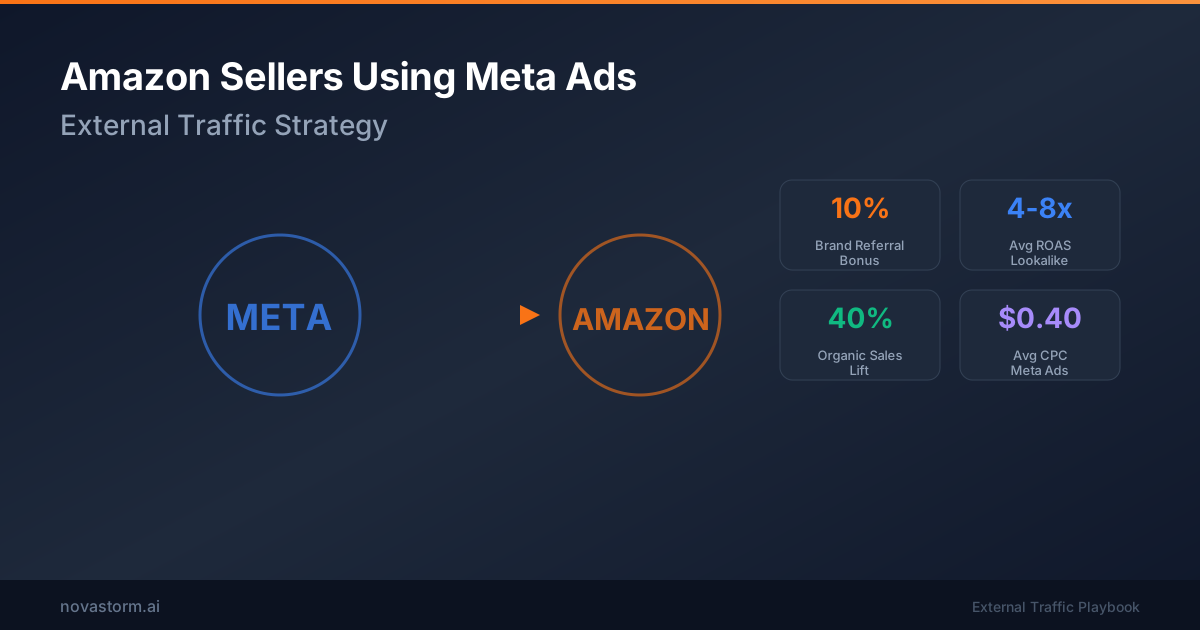
Amazon Sellers Using Meta Ads: External Traffic Strategy
Plan Meta traffic to Amazon using verified Attribution links, bonus eligibility and seller contribution after fees and refunds.