

Meta Ads Pixel Debugging: How to Fix Tracking Issues Fast
Trace a paid order through browser and server checkpoints, test duplicate delivery and failed payment, and distinguish event receipt from attribution.
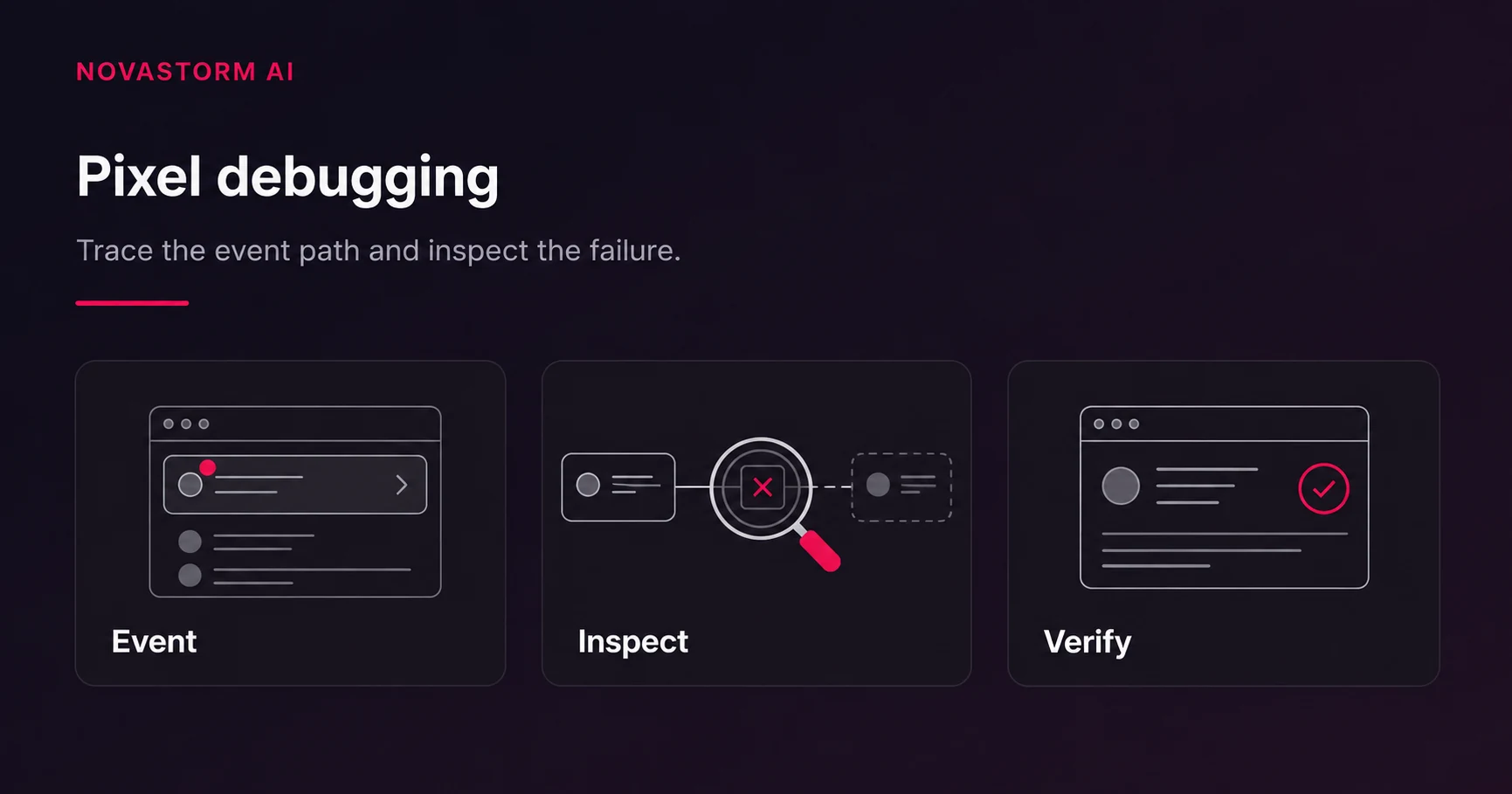
A missing attributed purchase does not prove the Pixel failed. Payment truth, event triggering, delivery, deduplication, matching and attribution are different checkpoints. Start with a safe test order and inspect the actual implementation. The traces below are illustrative expected records, not captured production requests or server responses.
Trace one paid order without sharing secrets
| Checkpoint | Illustrative order A record | Evidence required in your system |
|---|---|---|
| Payment ledger | Order A settles for USD 80 at the recorded paid time | Provider-confirmed payment and authoritative order state |
| Application trigger | One logical paid action, ID purchase-A | Trigger comes after confirmation, not a button click |
| Browser | Purchase; value 80; currency USD; option eventID = purchase-A | Correct dataset, request and configured permission state |
| Server | Purchase; value 80; currency USD; field event_id = purchase-A | Event time reflects the action; accepted response, request reference and retry history |
| Events Manager | Browser/server describe the same purchase | Receipt details and deduplication diagnostics |
| Ads report | Credit may or may not be assigned | Selected attribution setting and eligible matching evidence |
Browser eventID and server event_id are different integration names for the shared logical identifier; do not copy the same spelling into both channels. See the CAPI setup example and Meta’s server event contract. A customer ID must not substitute for the transaction identifier because one customer can make multiple purchases.
Safe illustrative server outcomes: an accepted submission returns an HTTP success response and the integration records its receipt details; a rejected submission records the status and sanitized validation category; a timeout records “delivery unknown” and enters a bounded retry queue. These are expected categories, not literal API payloads. An HTTP success alone does not certify attribution or prove every item in a batch was accepted. Inspect the actual documented response and per-event diagnostics for the integration you use.
Keep dataset IDs, credentials, personal identifiers and full payloads out of shared screenshots. A redacted evidence sheet can contain order label, action time, event name, logical ID, channel, status and a nonsecret request reference. If plugin and GTM both own Purchase, choose one authoritative trigger before changing matching data. Follow the GTM ownership and preview workflow.
A reproducible two-order test
Stop wasting ad budget
NovaStorm AI cuts Meta Ads CPA by 30% on average. No complex setup required.
Run the following in an authorized sandbox or supported test mode, with eligible tracking permission and the configured browser/server channels. These are expected logical counts, not claims that this test has already passed on your site.
| Action | Expected physical submissions | Expected logical Purchase total |
|---|---|---|
| Settle order A, USD 80 | One browser and one server action if both channels are enabled | 1 |
| Reload A confirmation | No new logical action; any duplicate delivery retains purchase-A | 1 |
| Retry A after simulated timeout | Same event name, ID and original action time | 1 |
| Settle separate order B, USD 40 | Own browser/server pair with purchase-B | 2 |
| Repeat B webhook delivery | Existing B ID; no second paid action | 2 |
| Attempt order C and fail payment | No Purchase; pending/failure records are not paid | 2 |
Assert that A and B differ even for the same customer, while every retry of A keeps its identity. The ledger must show two settled orders totaling USD 120. Test an eventual timeout recovery and a permanent validation rejection separately; do not retry a permanently invalid payload endlessly. A permission-denied case can legitimately yield no advertising event and must not be backfilled simply because permission changes later.
Accept the repair against real payment truth
- Re-run success, failure, reload, webhook retry and permission scenarios. Save redacted actual evidence for each assertion; compare logical events, not raw network request count.
- Reconcile eligible settled orders, accepted deliveries and deduplicated receipts over one timezone and interval. Account for refunds and known reporting delay using your own measurements.
- Verify the implementation emits no Purchase before settlement and does not reuse transaction IDs. Investigate persistent rejections or lag before interpreting attributed revenue.
Derive an alert allowance from eligible coverage and observed latency rather than an arbitrary universal discrepancy percentage. Receipt means an event arrived; attribution means reporting assigned ad credit under its rules. Neither is a controlled measure of incremental sales. NovaStorm is not demonstrated here as a Pixel debugger, event-delivery service or attribution repair tool.
Published by NovaStorm AI. Planning examples are illustrative assumptions, not measured customer results.
Disclaimer: This article was generated with the assistance of AI and reviewed by the NovaStorm AI team. While we strive for accuracy, we recommend verifying specific data points and consulting official sources (linked where available) for critical business decisions.
Ready to automate your Meta Ads?
NovaStorm AI takes full responsibility for your campaigns — from monitoring to optimization.
Start NowMore on Tracking and first-party data
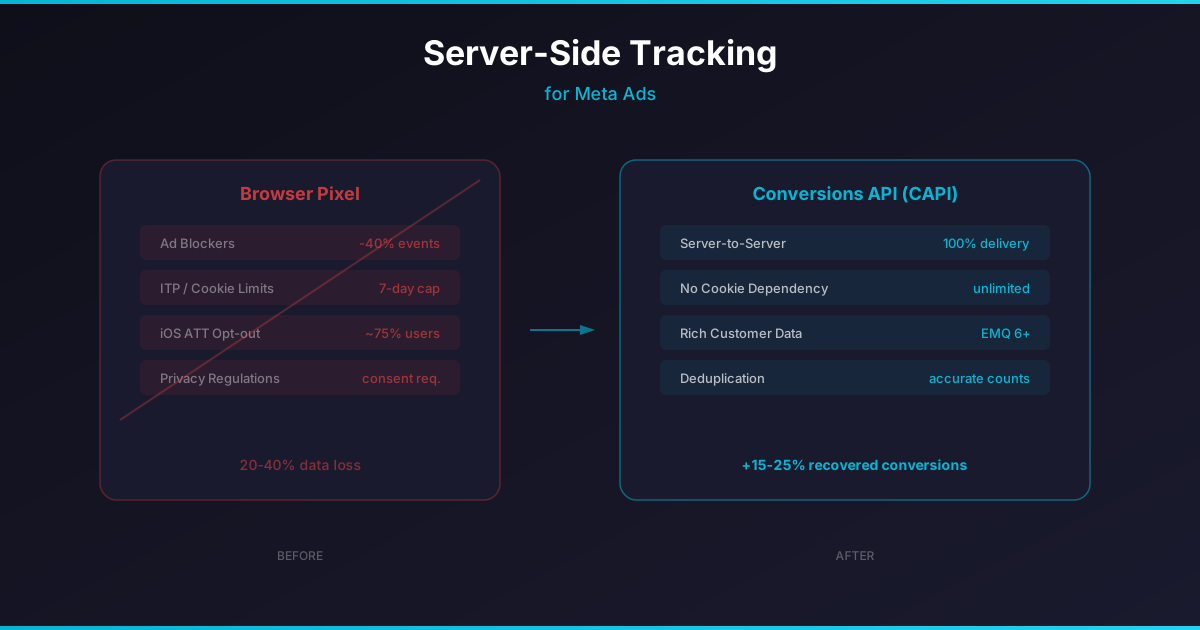
Server-Side Tracking for Meta Ads: Why It Matters More Than Ever
Design a consent-gated server-side event flow, recover from delivery failures, and distinguish source persistence from Meta CAPI acceptance.

First-Party Data Strategy for Meta Ads in a Cookieless World
Choose a permitted first-party subset, assign data owners and expiry rules, and verify suppression across separate audience and conversion-event workflows.

Offline Conversion Tracking on Meta: Connecting Store Sales to Ads
Map confirmed store sales to connector fields, preserve event identity through retries, and reconcile delivery separately from ad credit and incremental effect.

Meta Conversions API (CAPI): Setup Guide and Best Practices
Validate a browser/server Purchase pair against paid orders, test retries and second purchases, and keep CAPI delivery separate from source persistence and attribution.